
Creating an Action
An Action is a small workflow: ordered steps that Sprint Satellite runs for you, with the AI working inside each step. Typical uses: prepare a monthly report from a template, email a summary every Monday, or pull data and file it somewhere.
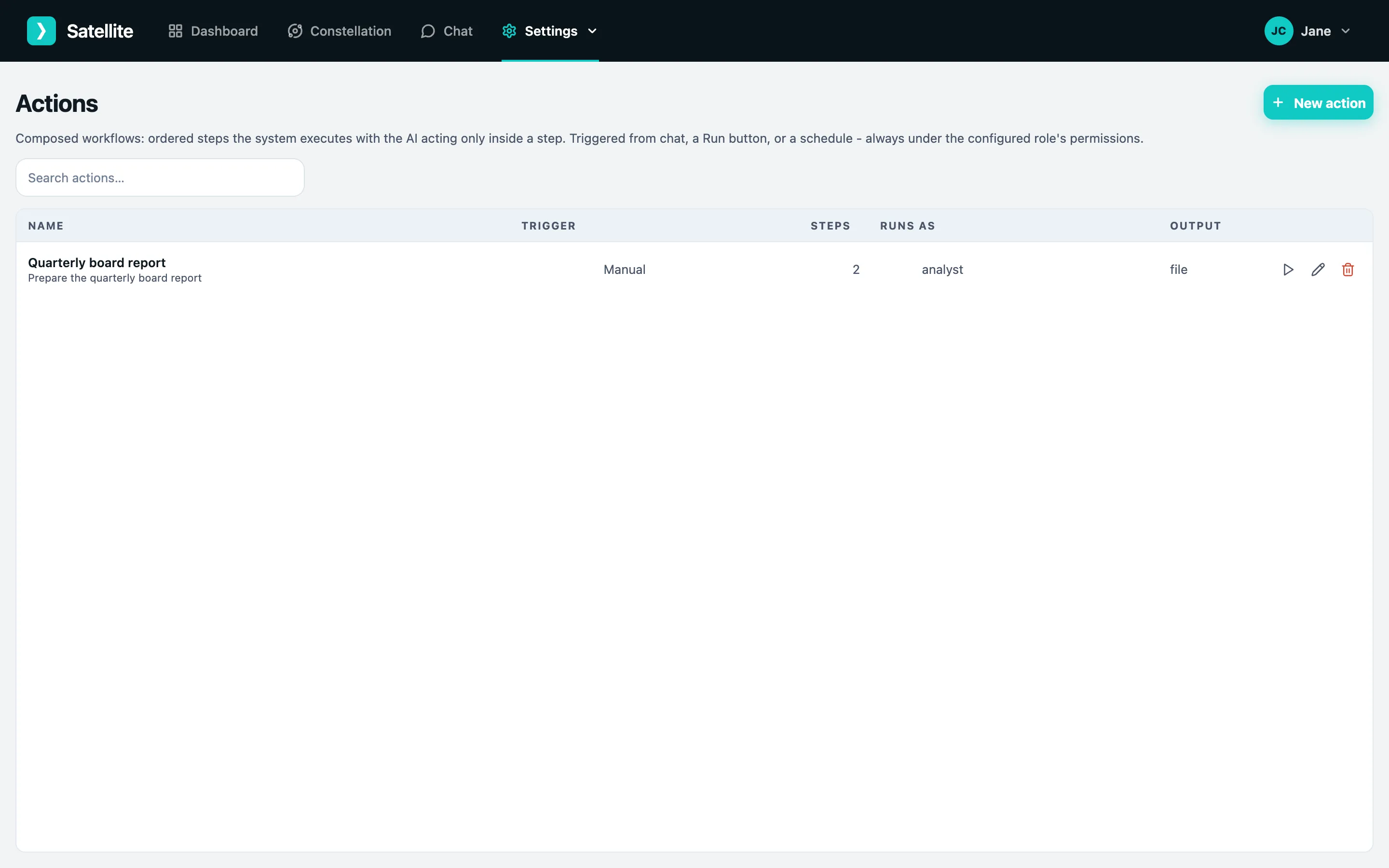
Actions need the admin role. Find them under Settings → Actions.
Building one
Section titled “Building one”Click New action.
1. Describe it
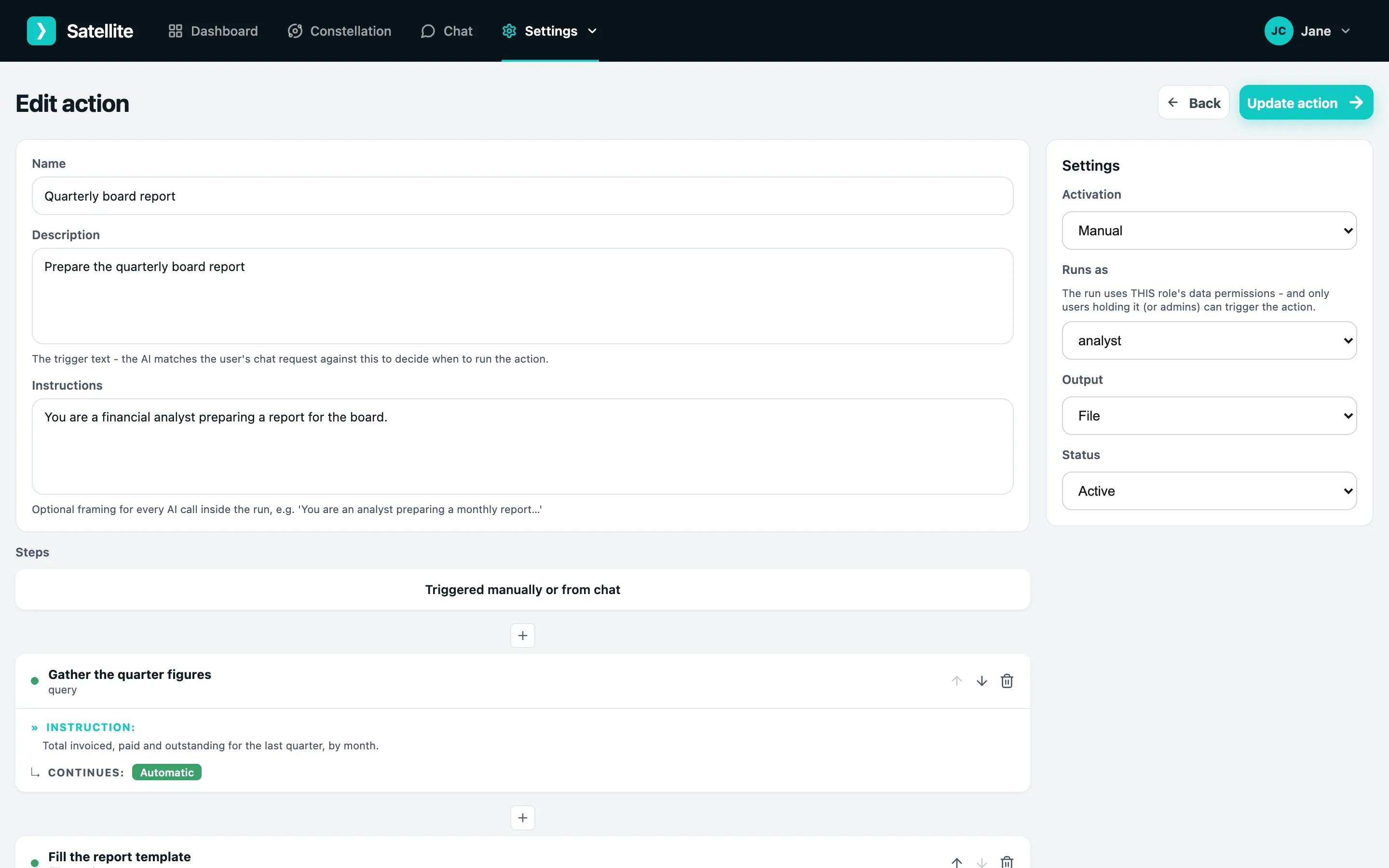
Section titled “1. Describe it”- Name - what you will see in the list.
- Description - the trigger text. When someone asks Chat for this, the AI matches their request against the description to decide whether to run the action, so describe it the way people would ask for it: “Prepare the quarterly board report”.
- Instructions - optional framing for every AI call inside the run: “You are a financial analyst preparing a report for the board…”.
2. Add steps
Section titled “2. Add steps”Click the + between cards to add a step. Each step has a type - for example querying data, filling a document template, or asking the user for approval - a name, and an instruction telling the AI what to do in that step. Some types have their own settings (a template file to fill, an email to send to).
Steps run in order; use the arrows to reorder and the bin to remove. A step marked Needs approval pauses the run until someone confirms.
3. Settings
Section titled “3. Settings”On the right:
- Activation - Manual (a Run button, or asked for in Chat), Scheduled (a cron expression and timezone), or Webhook (an outside system posts to a URL to start it).
- Runs as - the role whose data permissions the run uses. Only people holding that role (or admins) can trigger it.
- Output - deliver the result in Chat, as a file to download, or by email to a list of addresses.
- Status - Active or Inactive.
Click Save action at the top right.
Running it
Section titled “Running it”- Manual actions have a Run icon in the Actions list, and can also be started from Chat by asking for them in words.
- Scheduled actions run on their schedule.
- Webhook actions show their URL in the editor once saved; POST to it to start a run.
Each run shows its progress step by step, pauses for any approval steps, and delivers the output the way you chose.