
Other Connectors
All of these start the same way: Settings → Connectors → New connector, then pick the system. Only the authorisation step differs.
Works like Xero: sign in to MYOB, allow access, then choose the company file to connect. Brings in invoices, contacts and payments.
HubSpot
Section titled “HubSpot”HubSpot uses a private app token rather than a sign-in:
- In HubSpot go to Settings → Integrations → Private Apps and create an app with read scopes for contacts, companies, deals, tickets, products, orders and projects.
- Copy the token.
- In Sprint Satellite choose HubSpot, paste the token, and connect.
HubSpot records are joined to your accounting data by company and contact, so Chat can answer questions that span both.
SQL Database
Section titled “SQL Database”Mirrors selected tables from MySQL, PostgreSQL or SQL Server.
- Choose SQL Database and enter the host, port, database and a read-only user.
- Optionally connect through an SSH tunnel - paste the private key or upload the file.
- Click Inspect to list the tables, tick the ones to mirror, and connect.
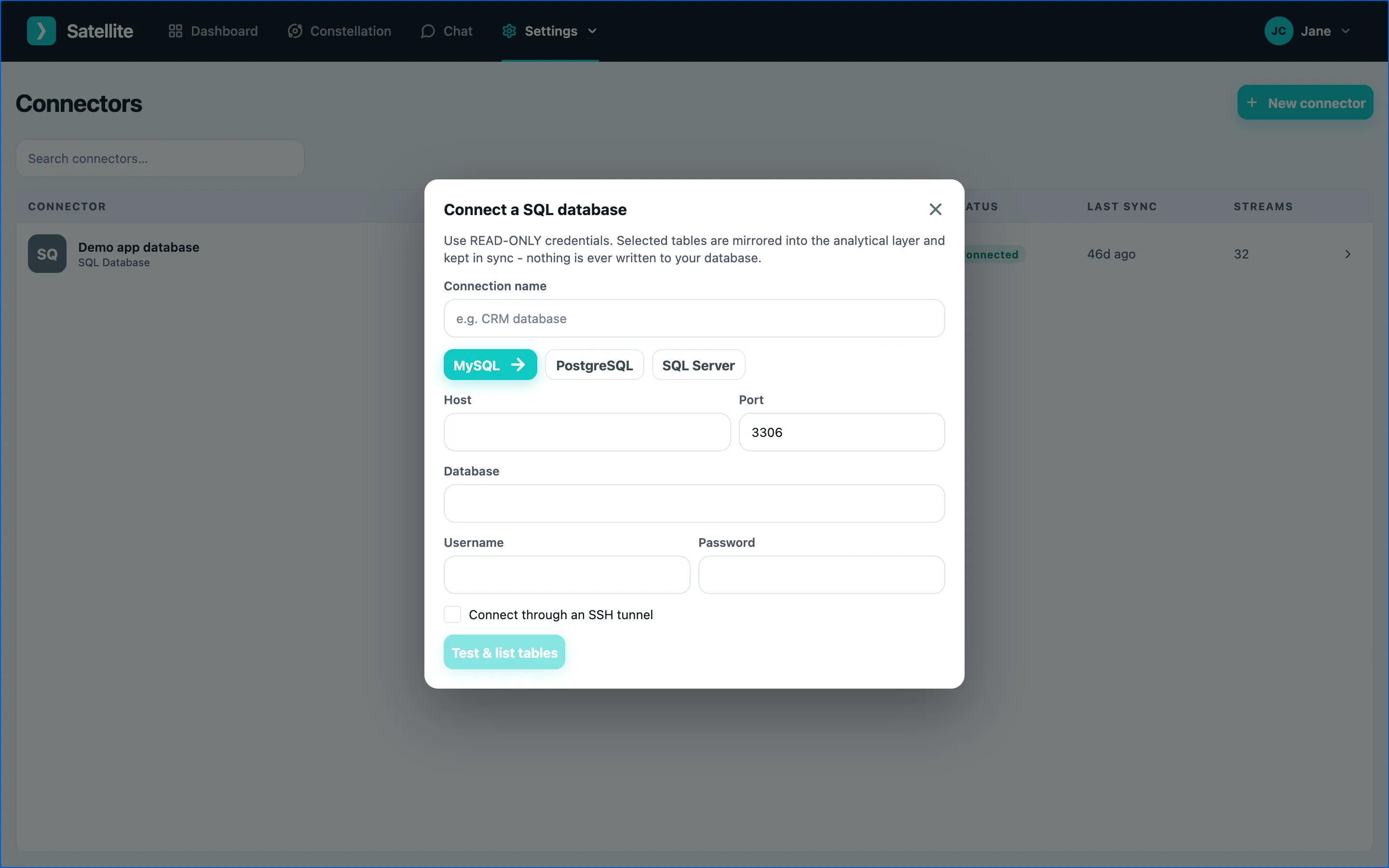
Mirrored tables appear in Chat and the Data explorer under the connector’s name.
Custom API
Section titled “Custom API”Pulls selected endpoints of any REST/JSON API.
- Choose Custom API, enter the base URL and the API’s authentication (header, bearer token or basic auth).
- Either probe the API live or import an OpenAPI / Swagger / Postman spec to list its endpoints.
- Tick the endpoints to ingest and connect.
CSV Upload
Section titled “CSV Upload”For a spreadsheet export, or data that lives nowhere else.
- Choose CSV Upload and pick the file.
- Sprint Satellite detects the header row - including two-row headers where a group heading spans several columns - and types each column.
- Map the columns onto an existing entity (say, invoices) or keep them as a table of their own.
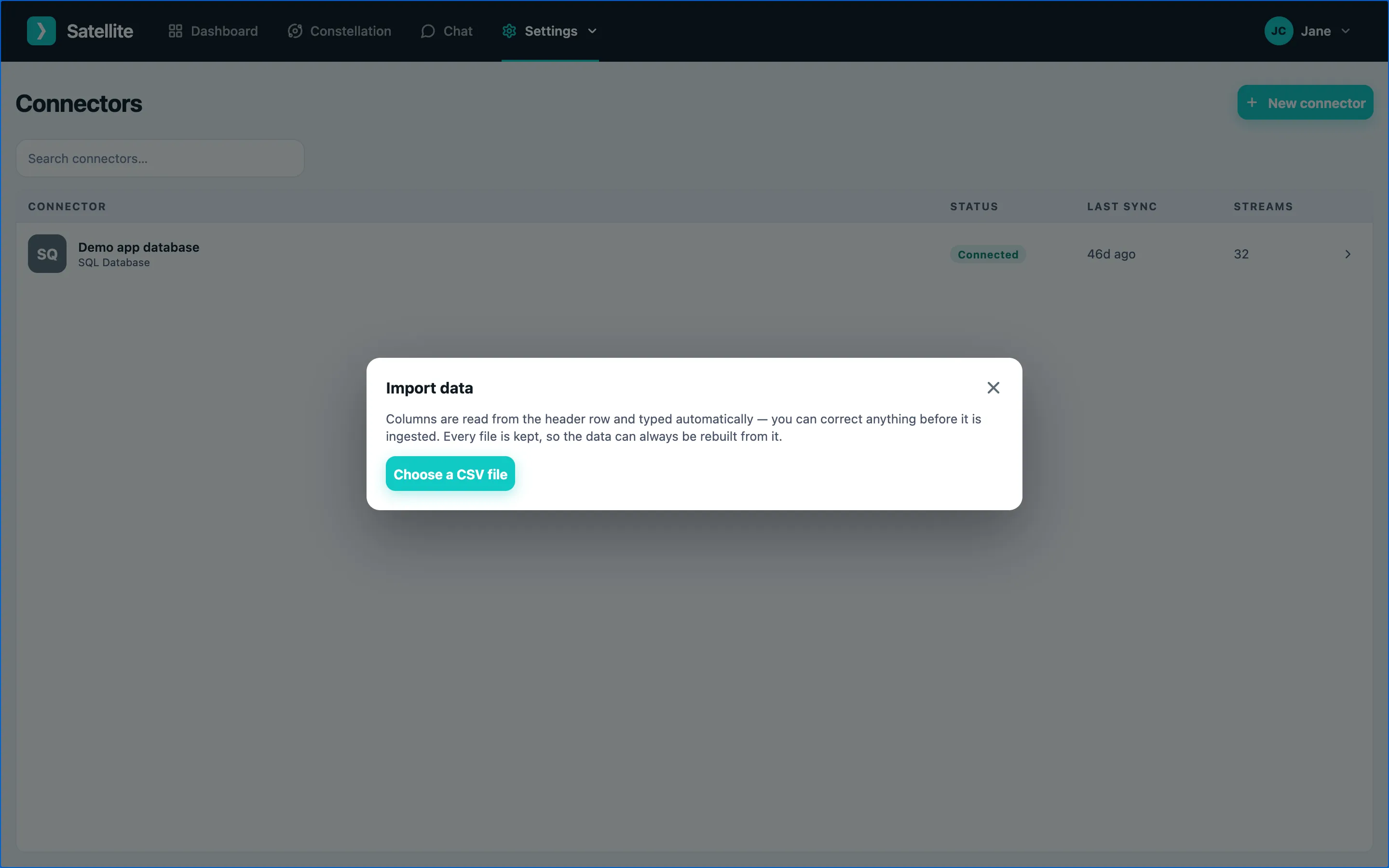
One CSV connector holds every file you upload to it, so you can keep adding monthly exports to the same table.