
Editing a Dashboard
You can edit any dashboard you own or that was shared with you with write access.
Rearranging
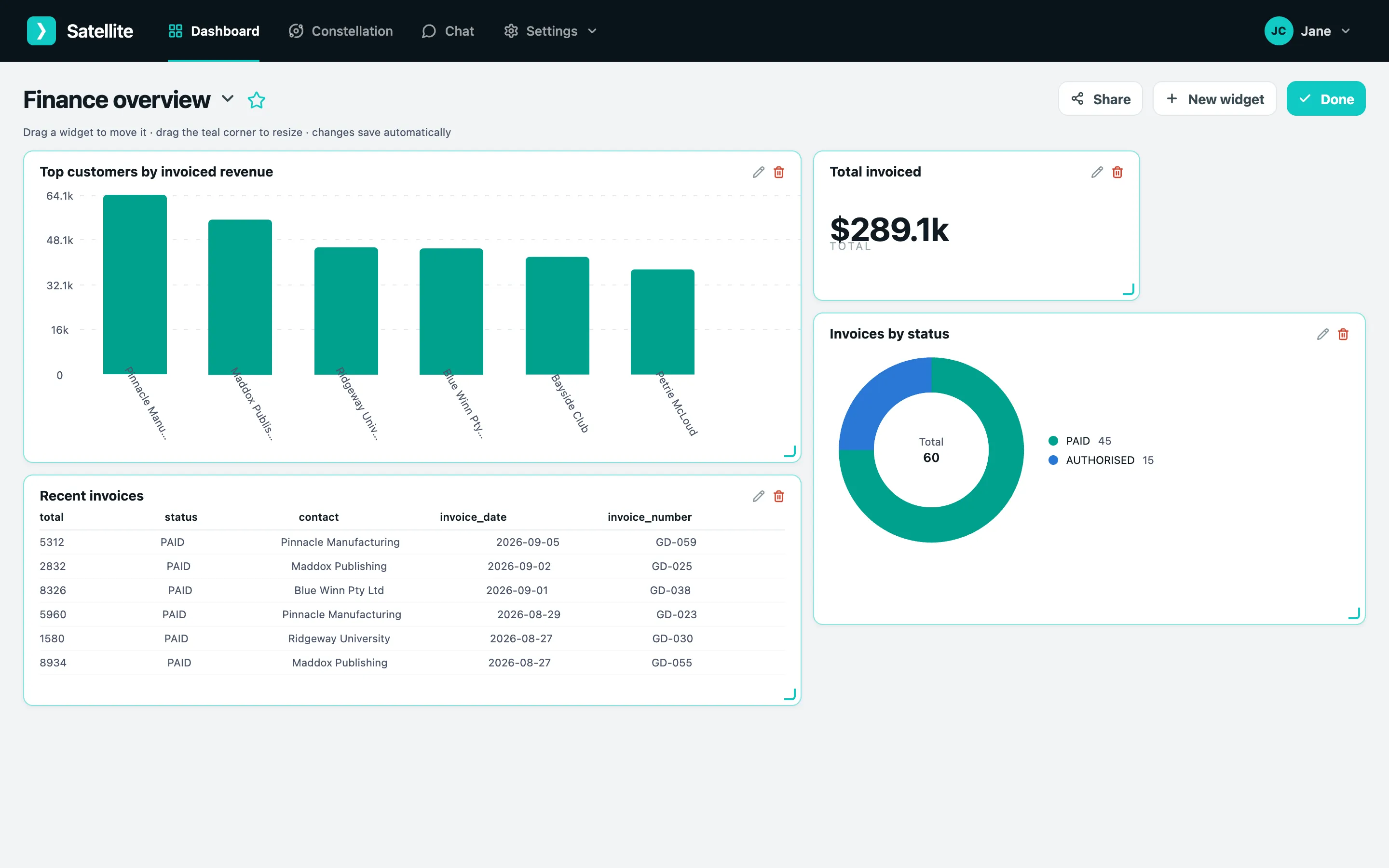
Section titled “Rearranging”- Click Edit at the top right.
- Drag a widget by its body to move it; drag the corner to resize.
- Click Done. Positions save automatically.
Changing a widget
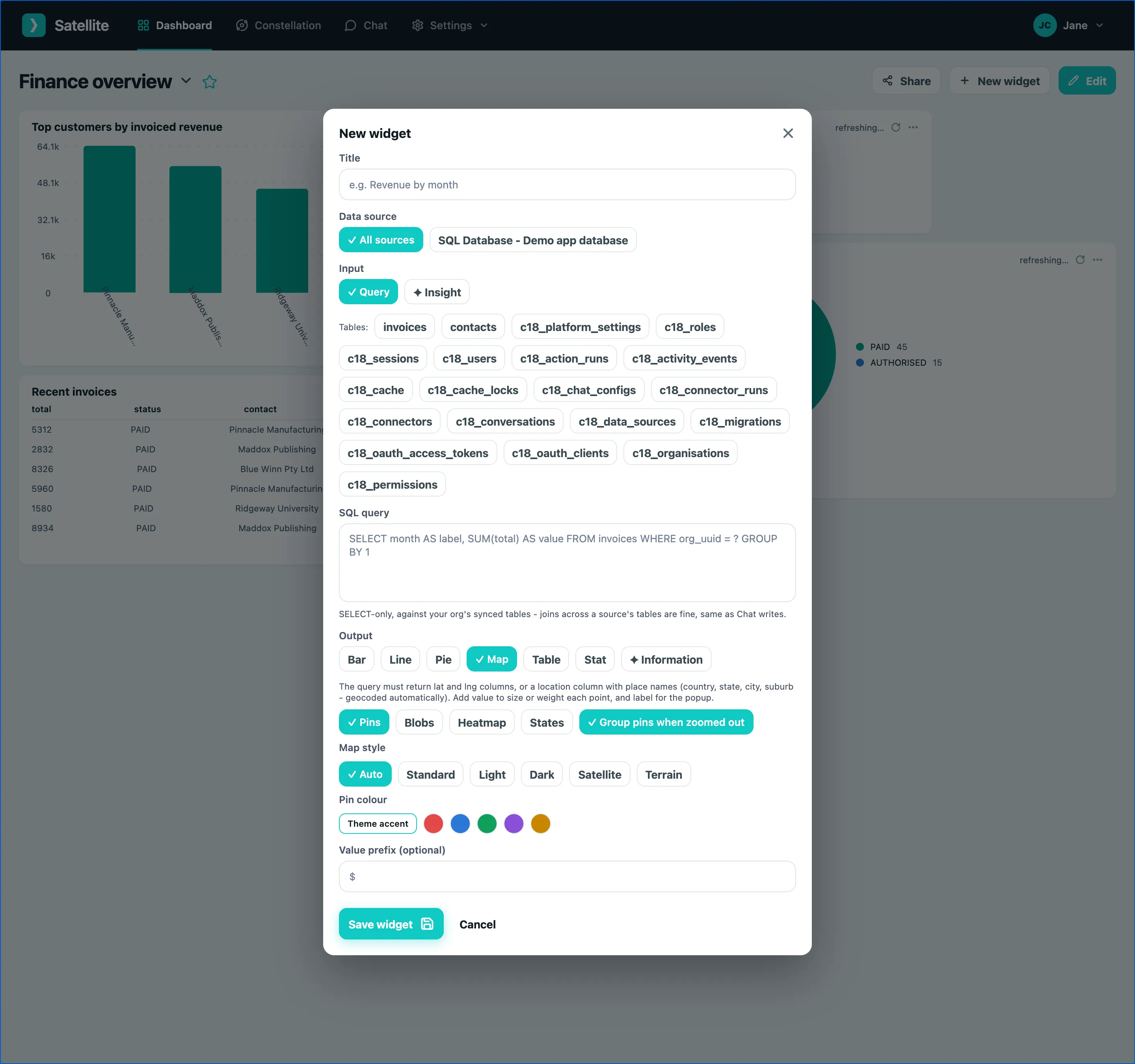
Section titled “Changing a widget”Click the ⋯ menu on a widget (or the pencil in edit mode) and choose Edit. You can rename it, change the query or insight question, and set the refresh interval.
Charts - switch between bar, line and pie.
Maps - choose the mode (pins, blobs, heat, regions), whether pins cluster when zoomed out, the map style (standard, light, dark, satellite, terrain) and the pin or fill colour.
Refreshing
Section titled “Refreshing”Widgets refresh on the interval set in the editor. Click the refresh icon on a widget to refresh it now; the time since the last refresh shows next to it.
Seeing the data behind a chart
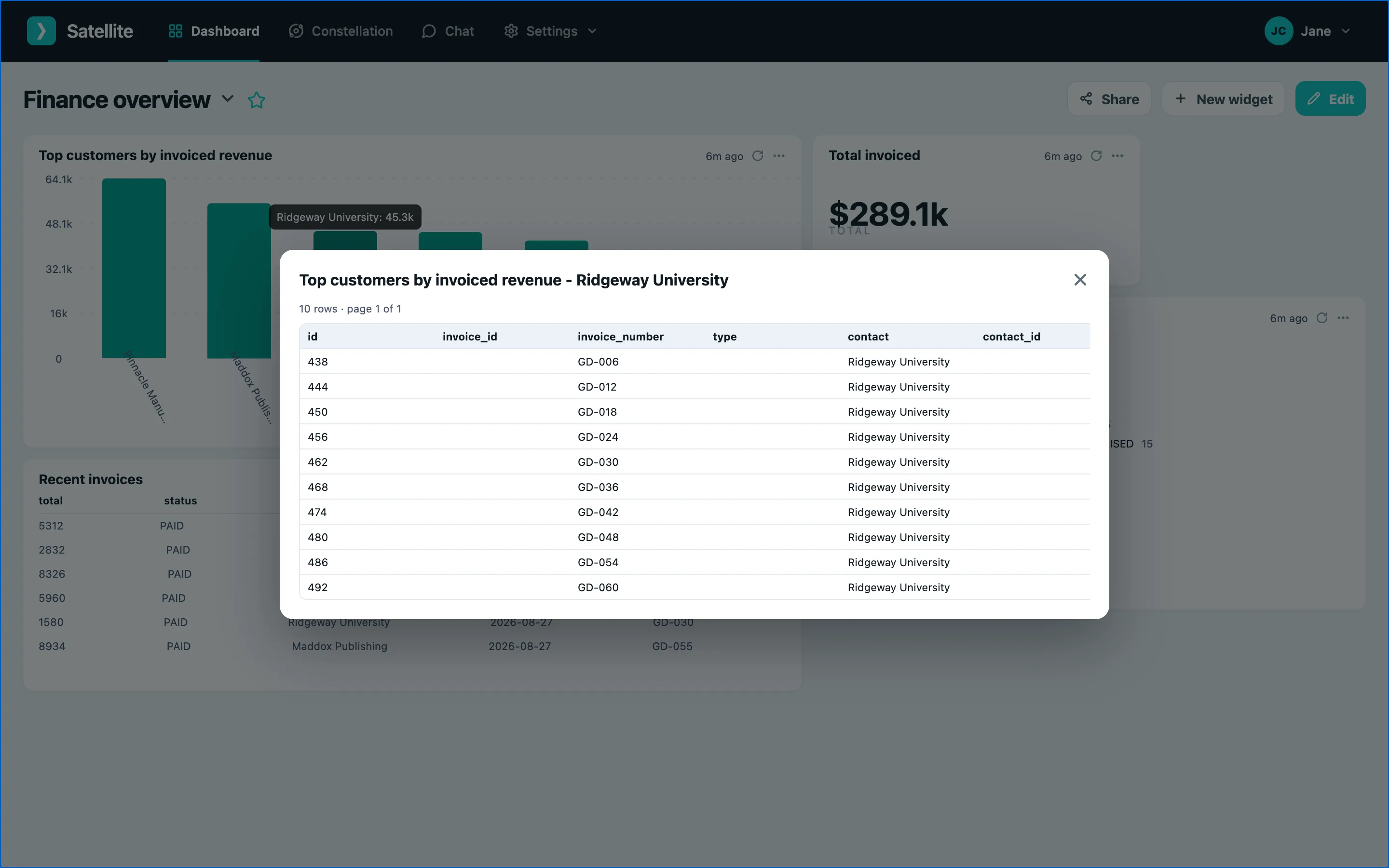
Section titled “Seeing the data behind a chart”Click any bar, slice or pin and a window lists the records that made it up - the actual invoices behind a customer’s total, for example - twenty at a time with paging.
Deleting
Section titled “Deleting”Choose Delete from the widget’s ⋯ menu. To delete a whole dashboard, open the switcher and use its menu.