
Securing Your Account
Your password alone is not enough to protect company data. Sprint Satellite shows a banner at the top of the app until two-factor authentication is set up.

Open the Security screen from the account menu - click your name in the top right and choose Security.
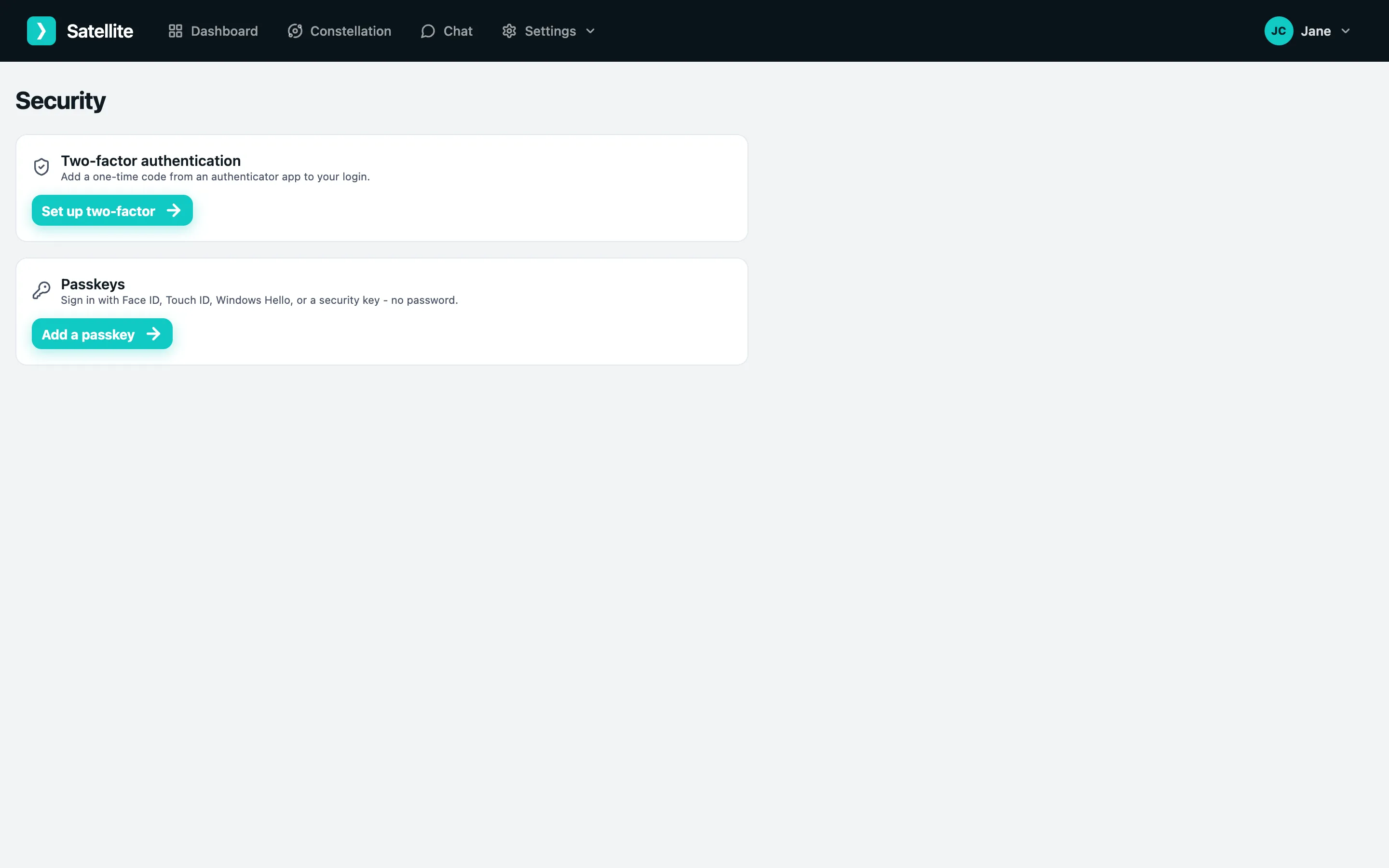
Turning on two-factor authentication
Section titled “Turning on two-factor authentication”- Click Set up two-factor.
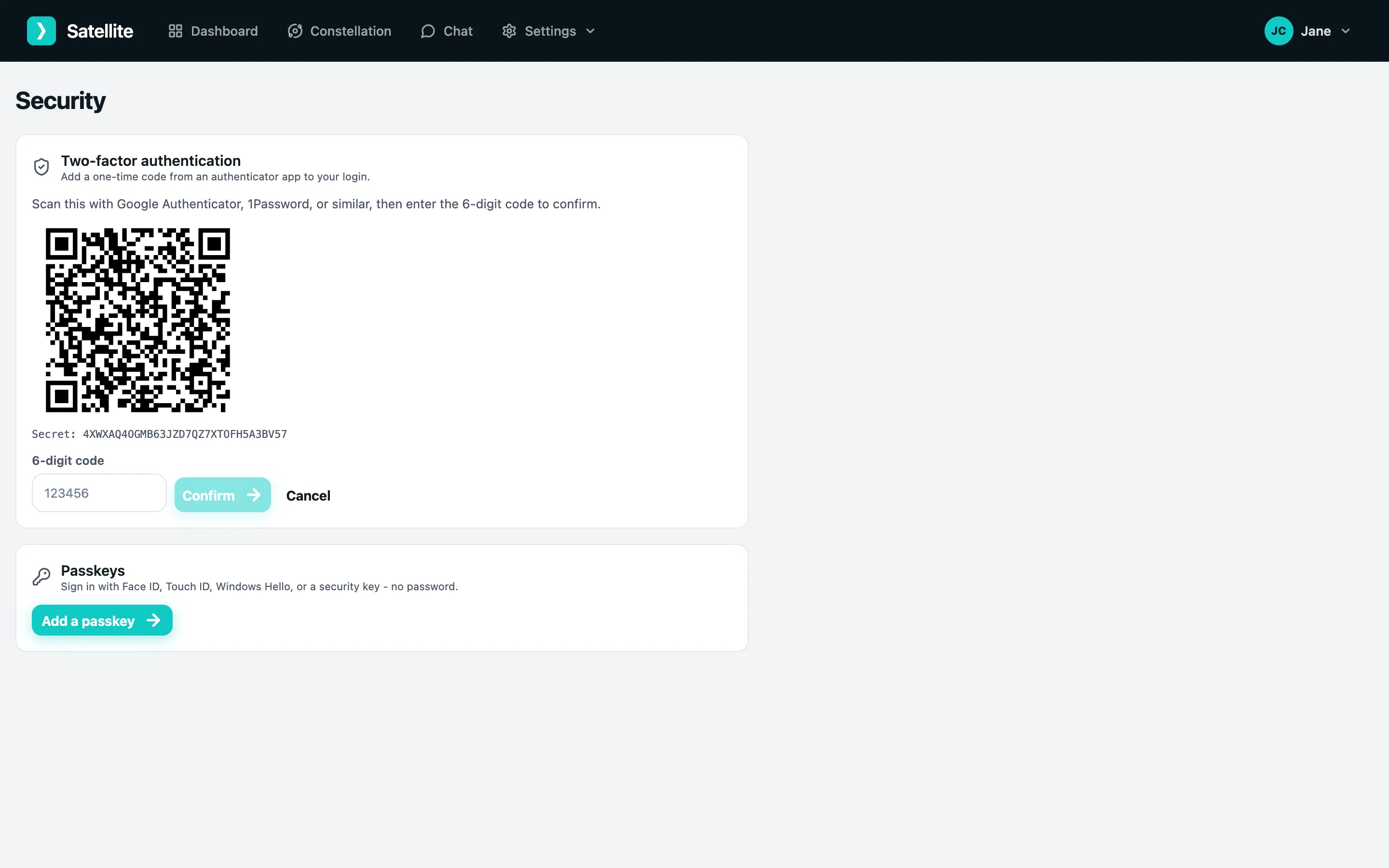
- Scan the QR code with your authenticator app (or type the secret in by hand).
- Enter the 6-digit code the app shows and click Confirm.
- Save your recovery codes. They are shown once. Each one signs you in a single time if you ever lose your authenticator.
From now on, password logins ask for a code. You can turn two-factor off from the same screen - it asks for your password first.
Adding a passkey
Section titled “Adding a passkey”A passkey lets you sign in with Face ID, Touch ID, Windows Hello or a security key instead of a password.
- Click Add a passkey.
- Approve the prompt from your browser or device.
The passkey appears in the list; remove one with the bin icon. Passkeys are an alternative way to sign in - they do not replace two-factor on your password login, so the reminder banner stays until two-factor is on.