
Connecting SharePoint and OneDrive
The OneDrive / SharePoint connector indexes documents - policies, procedures, reports, contracts - so Chat can answer questions from them and cite the source. It reads a drive: a personal OneDrive or a SharePoint document library.
You need the admin role in Sprint Satellite and a Microsoft 365 login that can see the drive.
Step 1 - start the connection
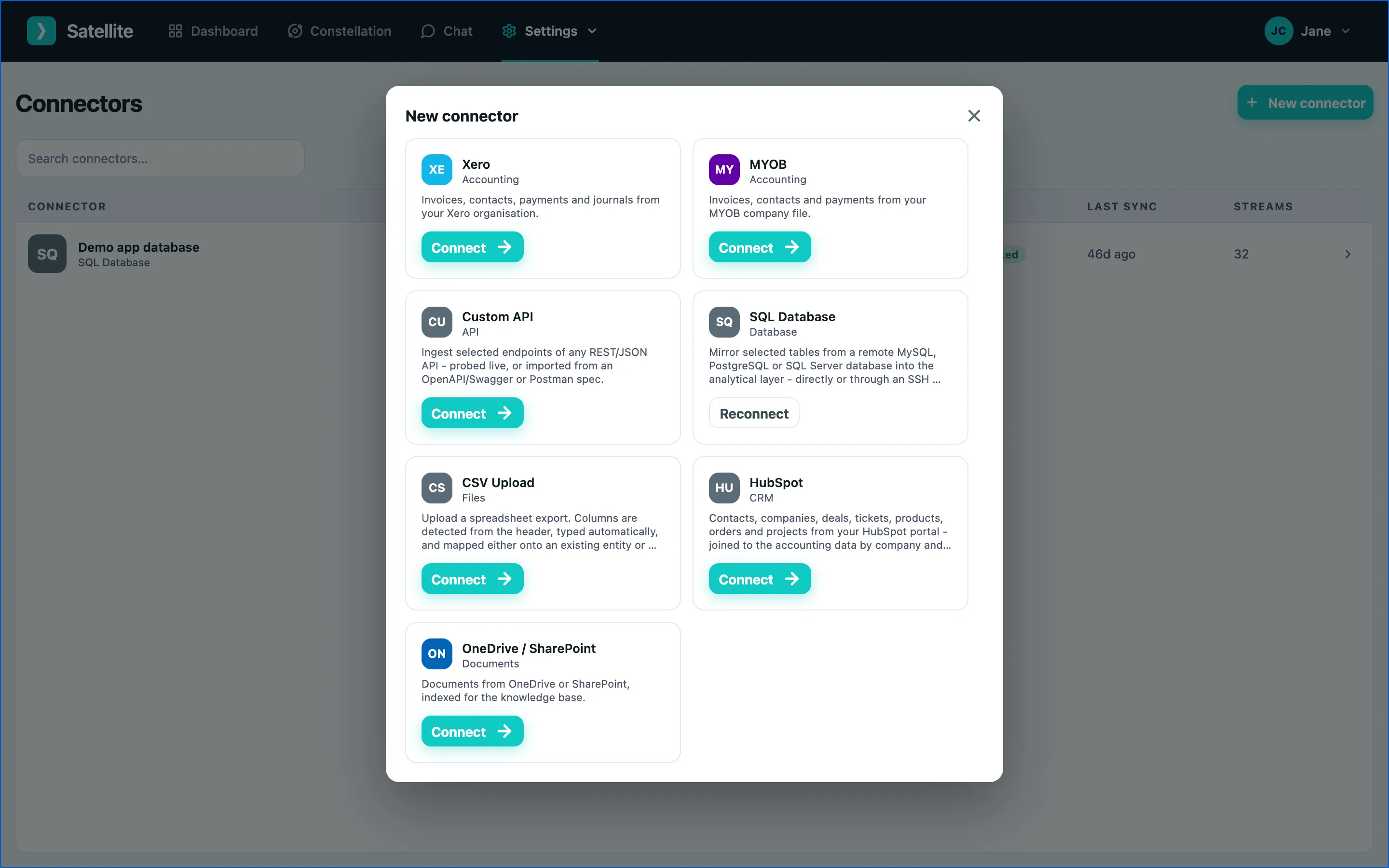
Section titled “Step 1 - start the connection”- Go to Settings → Connectors and click New connector.
- Choose OneDrive / SharePoint.
Step 2 - sign in to Microsoft
Section titled “Step 2 - sign in to Microsoft”Your browser goes to Microsoft’s own login page. Sign in with your work account. Sprint Satellite never sees these details - you are signing in to Microsoft directly.
Step 3 - accept the permissions
Section titled “Step 3 - accept the permissions”Microsoft lists what Sprint Satellite will be able to do - read files and site information. Click Accept.
Step 4 - choose the drive
Section titled “Step 4 - choose the drive”Back in Sprint Satellite, pick which drive to index:
- My OneDrive - your personal files, or
- a SharePoint site and one of its document libraries.
Choose one and confirm. To index several libraries, add the connector again for each.
Step 5 - first index
Section titled “Step 5 - first index”The connector shows Syncing while documents are read, then Connected. Open it to see how many files were indexed.
Word, Excel, PowerPoint, PDF and text files are indexed. New and changed files are picked up on each sync.
Try it
Section titled “Try it”In Chat, ask “What does our leave policy say about carrying over annual leave?” - the answer cites the document it came from. To make the AI treat a library a particular way (for example “always quote the clause number”), add instructions for that data source under Settings → Instructions.