
Connecting Your Data
A connection links one outside system to Sprint Satellite. Once connected, its data is pulled in on a schedule and becomes something Chat can query, dashboards can chart, and Actions can work with.
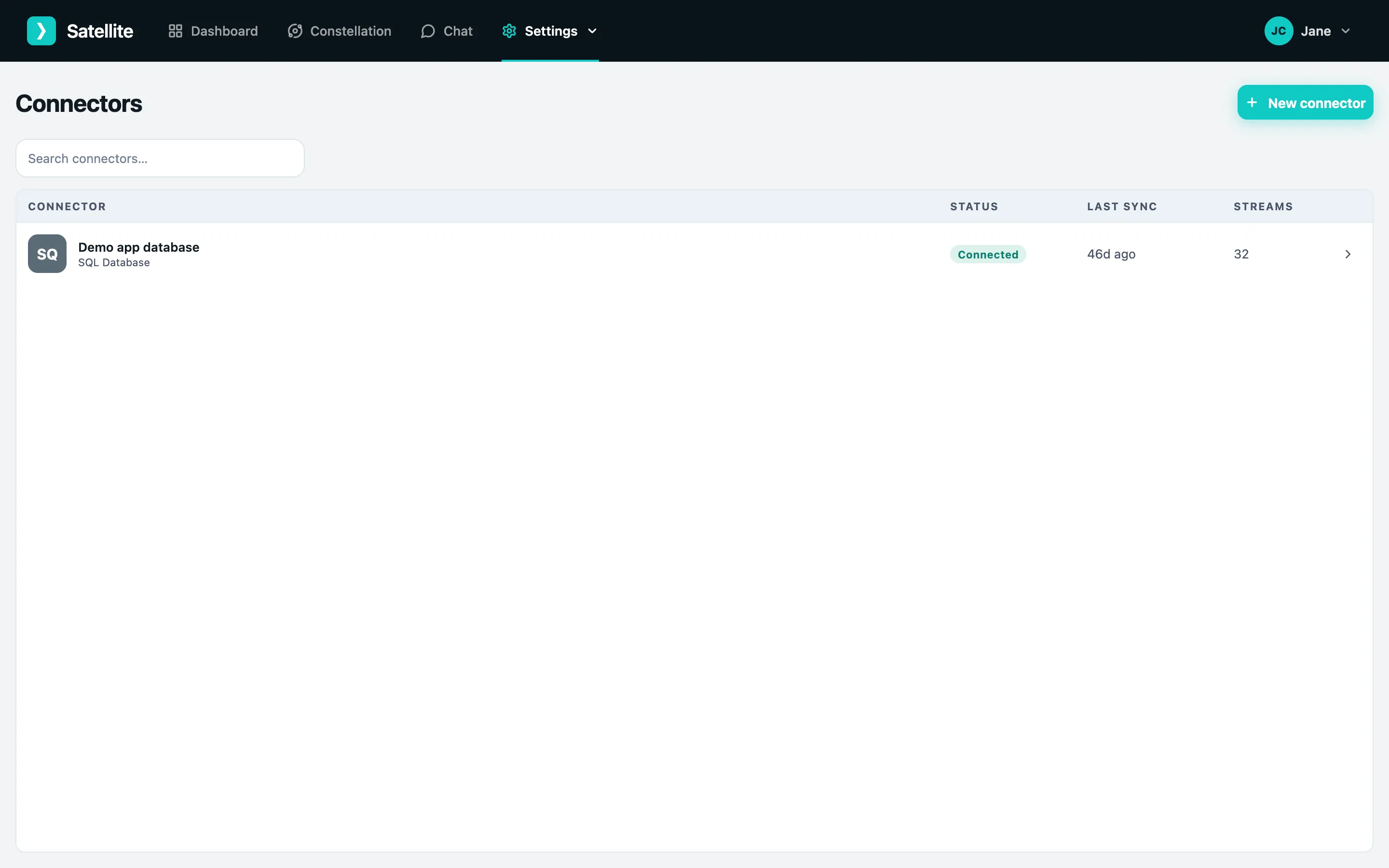
Connections live under Settings → Connectors and need the admin role.
What you can connect
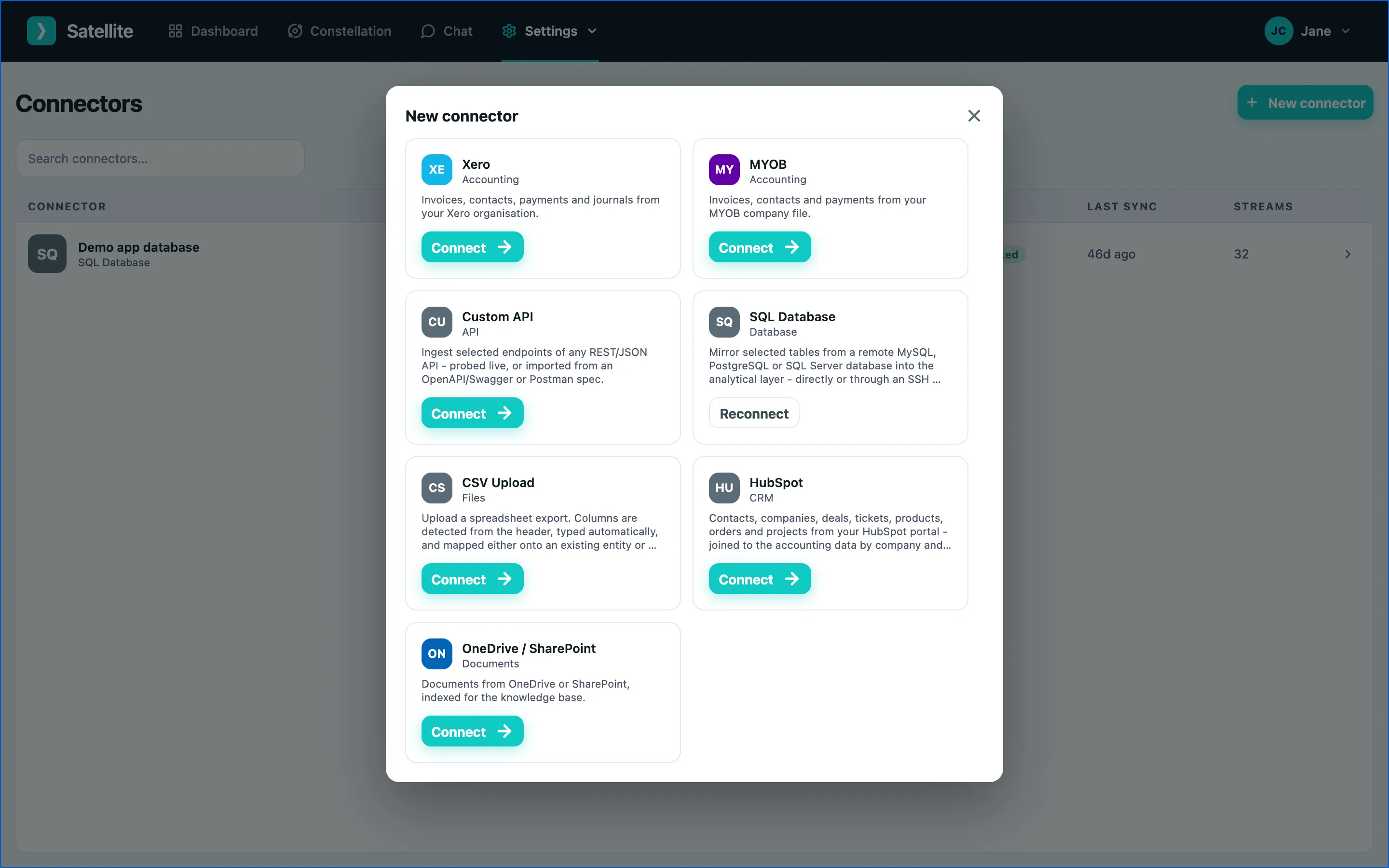
Section titled “What you can connect”| Connector | Brings in | How it authenticates |
|---|---|---|
| Xero | Invoices, contacts, payments, manual journals, bank transactions | Sign in to Xero |
| MYOB | Invoices, contacts, payments | Sign in to MYOB |
| OneDrive / SharePoint | Documents, indexed for the knowledge base so Chat can read them | Sign in to Microsoft |
| HubSpot | Contacts, companies, deals, tickets, products, orders, projects | Private-app token |
| SQL Database | Selected tables from MySQL, PostgreSQL or SQL Server | Read-only credentials, optionally over SSH |
| Custom API | Selected endpoints of any REST/JSON API | Base URL plus your API’s own auth |
| CSV Upload | A spreadsheet export, mapped onto a table | A file |
The flow every connector follows
Section titled “The flow every connector follows”- Go to Settings → Connectors and click New connector.
- Pick the system from the gallery.
- Authorise it - either by signing in to the other system (Xero, MYOB, Microsoft) or by entering credentials in Sprint Satellite (HubSpot, database, API, CSV).
- Choose what to bring in (the organisation, drive, tables, endpoints or file).
- Sprint Satellite runs a first sync. The connection then shows as Connected with its last sync time.
Step-by-step guides: